How to Fix High Ping in CS2: 9 Solutions That Actually Work

Publié le dans CS2
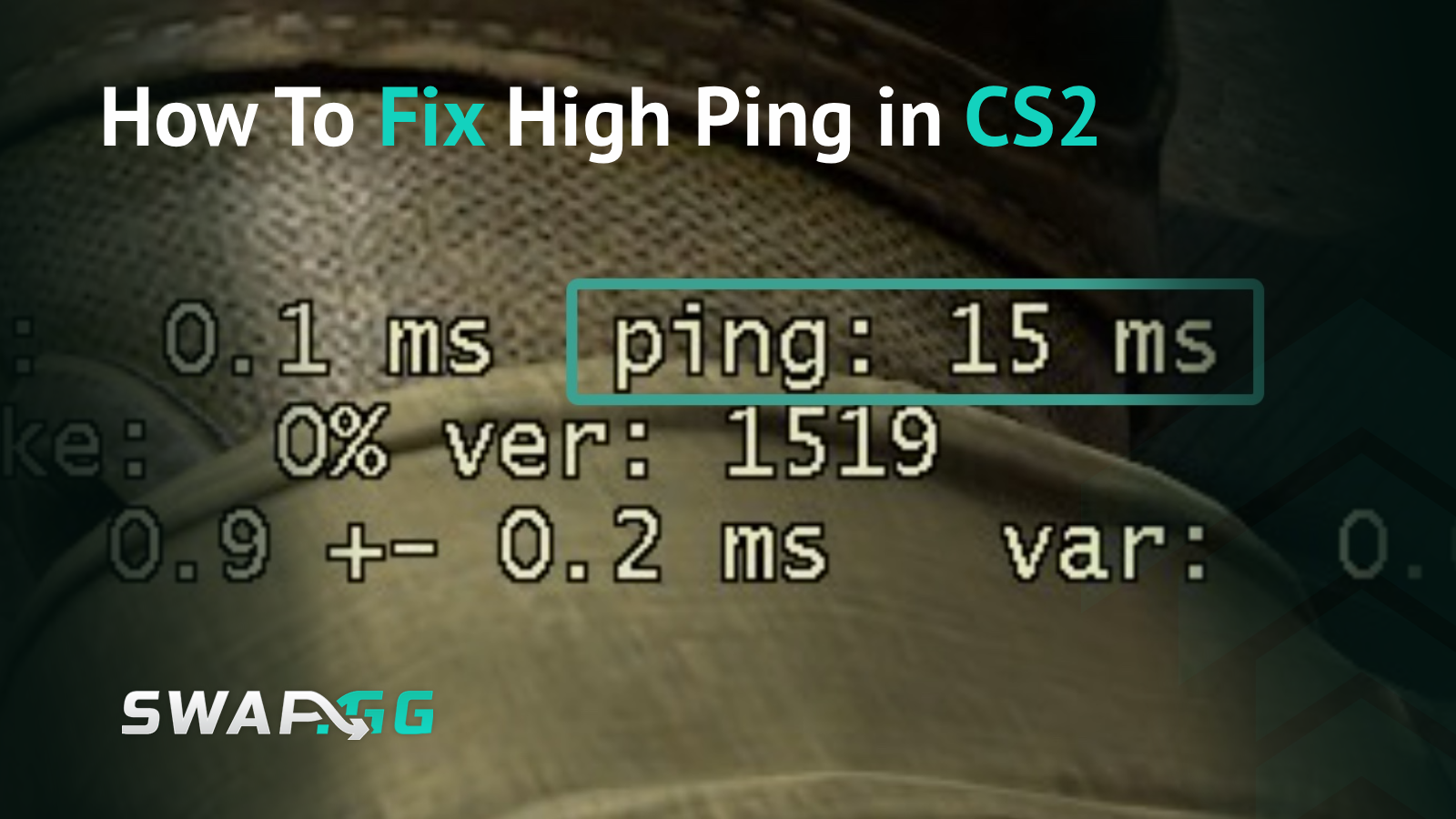
You're holding the angle perfectly, crosshair placement is clean, and then you're dead before the enemy even appears on your screen. High ping turns CS2 matches into guessing exercises where your skill doesn't matter, which is why anything above 50ms creates noticeable delays that put you at a serious disadvantage. When pros maintain ping under 10ms, every millisecond you're giving away costs you rounds. In this article, we’ll show you how to fix high pink in Counter-Strike 2, with the solutions that actually do the trick.
Understanding Why Your Ping Sucks
Ping measures the delay between your input and the server's response in milliseconds, which becomes critical in CS2 because the game requires higher upload and download speeds than most shooters. This means connection problems that don't affect other games will absolutely wreck your CS2 experience, especially when you consider how precise the mechanics are.
The usual suspects include distance from servers, garbage internet speed, Wi-Fi interference, other devices hogging bandwidth, and ISP routing issues. What people often overlook is CS2's default interpolation settings, which add artificial delay to compensate for unstable connections, and when you're already fighting high latency, this compounds the problem significantly.

Switch to Wired Ethernet Immediately
If you're on Wi-Fi, that's likely your biggest problem because wireless creates unstable ping with constant interference from walls, other devices, and even your microwave. Switching to Ethernet eliminates this variability entirely and typically drops your ping by 20-50ms, which makes a massive difference in how the game feels.
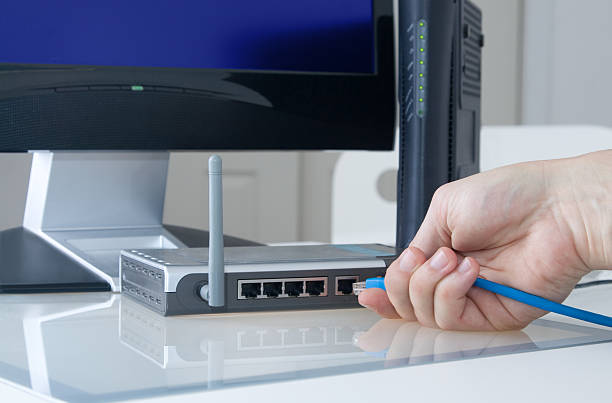
If you can't run a cable directly to your router, powerline adapters offer a solid alternative by using your home's electrical wiring to carry Ethernet signal. Connect one adapter near your router and another near your PC, then use regular Ethernet cables on both ends. It's not quite as good as direct wiring, but it's still miles better than Wi-Fi for competitive play.

Lock Down Your Server Selection
CS2's default matchmaking settings will connect you to servers that are technically playable but not optimal, which means you need to manually set your maximum ping limit to avoid getting dumped into laggy lobbies. Start by enabling console in Game Settings, then open it using the tilde key and enter mm_dedicated_search_maxping 50 to restrict matchmaking to servers where your ping stays under 50ms.
This command might increase your wait time slightly, but the gameplay quality improvement is absolutely worth it compared to playing with inconsistent latency. If you're in a region with fewer players, you can adjust this to 75 or 100, though anything above that creates delays you'll definitely feel during clutch moments.
To verify which server you actually connected to, press Shift+Tab during a match and view the server location in Steam overlay. If the game keeps placing you far from your region despite your ping limit, that's a clear sign you've got deeper connection problems that need addressing beyond just matchmaking settings.
Kill Background Bandwidth Hogs
Other applications competing for bandwidth can spike your ping by 50-100ms when they're actively transferring data, which is why you need to close them before launching CS2. Open Task Manager using Ctrl+Shift+Esc, then check the Network column and close anything consuming significant bandwidth that isn't essential for your gaming session.
Discord voice chat is usually fine because it uses minimal bandwidth, but automatic game updates, cloud backup services, and streaming platforms will destroy your connection quality. Windows updates are particularly notorious for hogging bandwidth, so pause them during gaming sessions by checking Windows Update settings. Similarly, Steam's Downloads section often has updates running in the background, so pause any active downloads before queuing for competitive matches.
Even browser tabs with auto-playing videos can cause noticeable problems, which is why you should close unnecessary applications entirely rather than just minimizing them. Background processes often continue consuming bandwidth even when minimized, so completely shutting them down ensures your CS2 connection gets the full bandwidth it needs.
Configure Quality of Service on Your Router
If multiple people use your network, your CS2 packets are constantly fighting Netflix streams and YouTube videos for bandwidth, which is where Quality of Service comes in. QoS prioritizes gaming packets over other traffic, giving your game data first-class treatment even when the network is busy with other activities.
To set this up, access your router admin panel at 192.168.1.1 or 192.168.0.1, then navigate to Advanced Settings or Traffic Management where you'll find QoS or Traffic Prioritization options. Add CS2 or your gaming PC to the high-priority list, apply the settings, and restart your router to implement the changes properly.
Testing shows that without QoS, latency fluctuates between 40-120ms with 5-8% packet loss during peak usage, but with proper prioritization, latency stabilizes at 20-40ms and packet loss drops to 0-1%. The difference becomes particularly noticeable during clutch situations where every millisecond matters and you can't afford any connection instability.
Update Network Drivers
Outdated network card drivers create inefficiencies in how your PC communicates with your network, which can add 10-20ms of unnecessary latency if you haven't updated in months. To fix this, open Device Manager by pressing Win+X and selecting it from the menu, then expand Network Adapters and right-click your network adapter to select Update Driver.
Choose "Search automatically for updated driver software" and let Windows find the latest version, which should only take a few minutes to complete. Beyond software updates, you should also check your physical setup because damaged Ethernet cables create signal degradation that increases ping unpredictably.
If your cable is old or cheap, upgrading to Cat6 or higher can improve stability significantly, and if your router is more than five years old, it might struggle with modern connection speeds and need replacement. Hardware issues like these often fly under the radar but can be responsible for persistent latency problems that software fixes can't solve.
Optimize In-Game Network Settings
These console commands won't fix a fundamentally bad connection, but they can minimize the impact of minor latency issues and help you squeeze out every bit of performance from your setup. Open console and enter the following commands to optimize how CS2 handles your network data:
rate 786432
cl_updaterate 128
cl_interp 0
net_graph 1
The rate 786432 command sets your maximum data transfer rate to the highest possible value, while cl_updaterate 128controls how many updates you receive from the server per second for smoother gameplay. Meanwhile, cl_interp 0adjusts interpolation for more responsive movement, and net_graph 1 displays real-time network stats so you can monitor your connection quality during matches.
Keep in mind that if your connection isn't stable, adjusting cl_interp might cause stuttering instead of improving performance, so test these changes during casual matches first. For even better visibility of network issues, go to Game Settings and set all Telemetry options to "Always," which displays your ping, packet loss, and server performance directly on screen in real time.
Flush DNS and Reset Network Configuration
Your network configuration accumulates errors over time, creating routing inefficiencies that gradually increase ping without you noticing the slow degradation. Clearing this out forces your system to establish fresh connections with updated routing information, which can resolve problems that developed gradually over weeks or months of use.
To do this properly, follow these steps:
- Search "cmd" in Windows and find Command Prompt
- Right-click Command Prompt and select "Run as administrator"
- Enter ipconfig /flushdns and press Enter
- Enter ipconfig /release and press Enter
- Enter ipconfig /renew and press Enter
- Restart your computer to complete the reset
After restarting, your system will establish new network connections from scratch. For additional improvement beyond just flushing DNS, consider switching to faster DNS servers that can reduce latency and improve connection stability:
- Open Network and Sharing Center from Control Panel
- Click "Change adapter settings" in the left sidebar
- Right-click your active connection and select Properties
- Choose Internet Protocol Version 4 from the list
- Enter Google DNS (8.8.8.8 and 8.8.4.4) or Cloudflare DNS (1.1.1.1 and 1.0.0.1)
Check If It's Actually Valve's Problem
Before spending hours troubleshooting your connection, you should confirm the issue is actually on your end rather than Valve's servers having widespread problems. Visit Downdetector and search for CS2 to see if hundreds of players are reporting issues simultaneously, which would indicate server problems you can't fix no matter what you try.
You should also check the CS2 subreddit or Steam Community Hub for reports from other players in your region, since sometimes specific server locations have issues while others work perfectly fine. If you're consistently getting high ping after fixing everything else on your end, the problem might be how your ISP routes traffic to Valve's data centers, which is something only they can address.
When to Call Your ISP
If you've tried everything and still experience consistently high ping, the problem likely lies with your internet service itself rather than your local setup. Before calling, you need to document the issue properly so you have evidence to present:
- Run speed tests at different times of day using Speedtest.net
- Record your download speed, upload speed, and ping to various servers
- Note whether speeds are significantly lower than what you're paying for
- Track whether ping varies wildly throughout the day or stays consistently bad
When calling your ISP, be specific about the problem instead of just saying "my internet is slow," which rarely gets helpful results. Explain that you're experiencing high latency with specific numbers to gaming servers and that you've already troubleshot everything on your end, then ask if there are local network issues, whether your plan provides sufficient upload speeds for gaming, or if they can check for line quality problems.
What Actually Fixes High Ping
Most high ping issues stem from using Wi-Fi instead of Ethernet, poor bandwidth management on shared connections, or outdated network configuration. If you only have time for one fix, switch to wired Ethernet because it addresses the most common source of instability and typically delivers the biggest improvement.
For long-term stability, restart your router weekly, keep network drivers updated, monitor bandwidth usage, and configure QoS if you share your connection. CS2's precise mechanics make it more sensitive to connection issues than most games, so what feels playable elsewhere will feel broken here. Optimizing your connection isn't overkill, it's the minimum required for your skill to actually matter in competitive matches.

Publié le dans CS2