Best CS2 Launch Options in 2026: Cut the Dead Commands

Publié le dans CS2
Copying a launch string you found online is probably making your game slightly worse, not better. Two of the commands in the average 15-flag config compete with your audio drivers for CPU time. One is supposed to lock your matchmaking tick rate, but Valve's servers set that themselves and ignore your flag entirely. These strings keep spreading because nobody wants to publish the guide that tells you to delete the thing you've been using for three years.
A Valve engineer stated in a Reddit thread that the best launch options are no launch options, because the default configuration is what the team tests against most heavily. That's not a knock on tuning your game. It's a useful frame for deciding what actually needs to be in that field and what's just sitting there from 2019.
CS2 launch options are Steam startup parameters that load once when the game starts, used to override specific engine behaviors or display settings. In 2026, Source 2 handles most of what CS:GO left to the player, leaving a short list of commands that do anything real. For most setups, three to five flags is the right number.
How to Open Your CS2 Launch Options
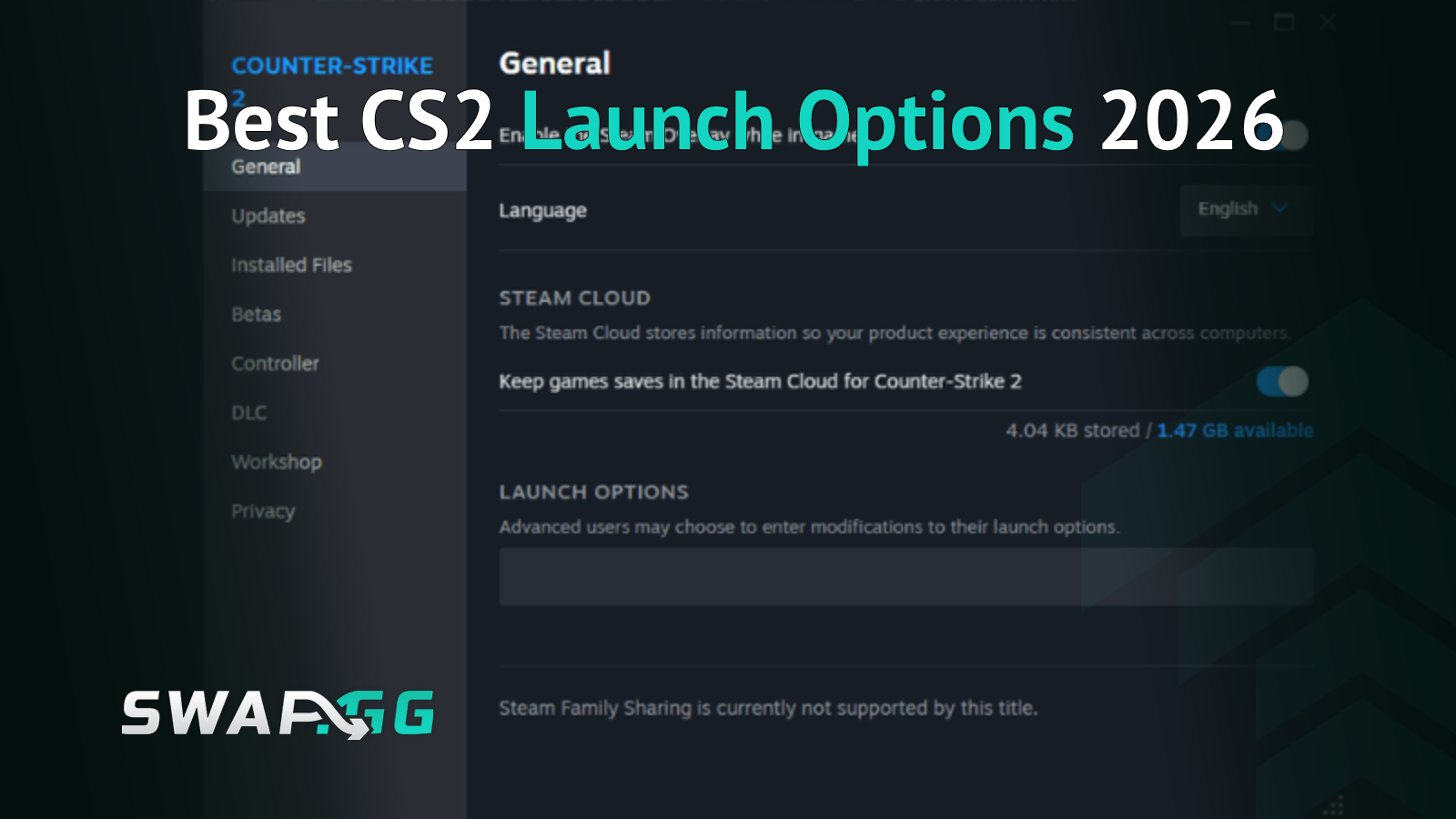
You open Steam and go to your library. You right-click Counter-Strike 2, select Properties, and find the launch options field on the General tab. You type your commands there separated by spaces, and they load automatically every time the game starts.
Each command starts with either - or +. The minus prefix marks an engine startup flag. The plus prefix runs a console variable when the game loads, exactly as if you typed it directly into the in-game console. Using the wrong prefix typically means the command does nothing, with no error message to tell you.
The Commands That Still Do Something in CS2
The working list is short. Not because launch options are limited, but because Source 2 auto-manages the things CS:GO players used to control manually.
-novid
Skips the Valve intro video on startup. It saves a few seconds every launch and has zero downsides. s1mple's documented config at specs.gg (updated March 2026) includes it alongside every other flag he runs. It's the one command with no debate across any skill level.
-console
Opens the developer console automatically when CS2 starts. If you regularly test configs or adjust settings mid-session, you skip the step of re-enabling it through the settings menu. If you never touch the console, leave this one out.
-nojoy
Disables joystick and controller input support. Some sources, including Valve's own Steam Community guides, note that CS2 may already disable this by default. Adding it explicitly doesn't hurt anything, and community reports suggest it reduces crash frequency on some setups. If you play with a controller, skip it.
+fps_max [value]
Caps or uncaps your frame rate depending on what you set. On a 144Hz display, setting it to 145 or 288 keeps frame timing clean without running your GPU at full load constantly. On a 240Hz monitor, +fps_max 0 removes the cap entirely. CS2 applies a frame cap by default, so this option has a real effect.
-freq [value]
Sets the game's target refresh rate. CS2 is supposed to read this from Windows display settings automatically, so many guides put this in the zombie category. Pros on high-Hz monitors still use it by choice. s1mple runs -freq 360 to match his ZOWIE XL2586X+ monitor. If your CS2 feels like it isn't hitting the full refresh rate your hardware supports, adding -freq with the correct value is worth testing.
-allow_third_party_software
Required if you run OBS, Discord overlay, or MSI Afterburner alongside CS2. Without it, overlay and capture software can conflict with the game process in ways that show up as mid-round frame drops or crashes.

The Zombie Commands That Do Nothing
These appear in every shared config thread and "pro settings leak" post. In CS2, they either do nothing or make things worse.
Why -high Makes Things Worse
Giving CS2 high process priority sounds like a win on paper. More CPU resources go to the game, so performance improves. On modern multi-core processors, Windows already handles CS2's scheduling competently without help. When you force high priority, CS2 can start competing for CPU time with audio drivers and background system services. On setups with integrated audio (which covers most mid-range builds), that competition produces micro-stutters that feel like bad ping but have nothing to do with your connection. Steam Community hardware documentation and the csbepro CS2 configuration guide both flag this explicitly.
Why -tickrate 128 Never Worked for Matchmaking
The command works in the sense that it does set a tick rate. The catch is that it only applies when you're hosting a local server or running an offline practice session yourself. Valve's matchmaking servers and FACEIT's infrastructure determine their own tick rates server-side, and your launch flag is discarded. Beyond that, CS2 uses a sub-tick system, which operates differently from the fixed tick rates CS:GO used, making the entire concept of setting a client-side tick rate even less relevant than before.
The real cost of zombie commands is the ceiling they create. Players tweak their string, feel like the game runs better (it almost certainly didn't change), and stop looking at the things that actually affect performance: GPU driver version, Windows power plan, shadow quality in the video settings.
Where Network Settings Actually Belong
Many guides put cl_cmdrate, cl_updaterate, and rate directly into the launch options field. It works. But a config file is the right place for them, and there's a practical reason beyond habit.
Launch options are parsed once as a raw string at startup. If the string is long or a flag behaves unexpectedly after a patch, your settings can silently fail to apply with no indication anything went wrong. Console variables load more reliably from config files because they initialize after the engine has finished loading, and they're much easier to update without touching your launch string every time.
Setting Up an Autoexec
You create a plain text file called autoexec.cfg and place it in your CS2 cfg folder. The standard path is:
Steam\steamapps\common\Counter-Strike 2\game\csgo\cfg\
You add +exec autoexec to your launch options as a single extra entry, and the file runs at every startup. A basic network section looks like this:
cl_cmdrate 128
cl_updaterate 128
rate 786432
A note on rate: according to the Valve Developer Community wiki, the current default in CS2's gameinfo.gi is already 786432 (roughly 6.2 Mbps), up from the 196608 default CS:GO shipped with. Setting it explicitly in your autoexec ensures it doesn't revert to a lower value after an update. If you're on a slow or unstable connection, dropping it toward 262144 (around 2.5 Mbps) can reduce packet loss artifacts during play.
Note on cl_interp: several well-tested Steam Community guides flag cl_interp as potentially obsolete in CS2 due to the sub-tick system changing how interpolation is handled. We've left it out of the recommended config until there's clearer documentation on whether it still applies.
What to Paste Based on Your Setup
You copy the string below that fits your situation and paste it into the launch options field.
The +exec autoexec assumes you've created an autoexec.cfg for your network settings. If you haven't done that yet, you leave it out and the rest of the string still applies.
What Pro Configs Actually Show
Pull up documented pro configs from HLTV coverage or prosettings trackers and the launch options sections are almost always minimal. s1mple runs four flags: -freq 360 -novid -console +fps_max 999 (per specs.gg, updated March 2026). NiKo, according to prosettings.net and cs.money's documented breakdowns, runs no launch options at all.
Dropping Global Shadow Quality from Medium to Low in CS2's video settings produces a larger, more consistent FPS gain than any launch string. Nobody says this in a launch options guide because it makes the guide kind of beside the point, but it's true on every piece of hardware we've tested against.

Publié le dans CS2